Digital clutter rarely announces itself as a problem.
It looks like 38 browser tabs you are afraid to close. A Downloads folder full of files named “final,” “final-2,” and “final-FINAL.” Three different places where important documents might be saved. An inbox that technically contains everything but helps you find almost nothing.
None of these issues feels urgent on its own. Together, they create dozens of small interruptions. You search, second-guess, re-download, reset passwords, and leave tabs open as makeshift reminders. The work gets done, but with more friction than it needs.
Learning how to organize your digital life is not about creating an elaborate filing system or achieving an empty inbox. It is about making your information easier to find, your accounts easier to manage, and your devices less demanding of your attention.
You do not need to reorganize every file you have ever created. You need a simple structure for what matters now, a sensible archive for everything else, and a short routine that prevents the clutter from rebuilding.

Decide What “Organized” Needs to Mean
A beautifully labeled folder system is not useful if you cannot remember where anything belongs.
Before moving a single file, decide what you want your digital organization system to help you do. Most people need it to answer a few practical questions:
- Where should I save this?
- Where would I look for it later?
- Does this require action?
- Is this backed up?
- Can I access it from the device I normally use?
- Does this information still need to exist?
A well-organized digital life should reduce decisions. Each major category needs one primary home, and the naming should be obvious enough that you do not have to relearn your own system every month.
Aim for clarity, not complexity.
Start With the Places Creating the Most Friction
You may have clutter across your computer, phone, inbox, cloud storage, photo library, browser, and half a dozen apps. Trying to fix everything at once usually leads to a burst of enthusiastic sorting followed by a half-finished system.
Instead, identify the three places causing the most daily frustration.
Ask yourself:
- What do I search for repeatedly?
- Which app or folder makes me feel immediately behind?
- Where do important items get lost?
- What am I keeping open because I do not trust myself to find it again?
- Which digital task do I regularly postpone?
Your answer might be email, photos, and your Downloads folder. Someone else may need to begin with passwords, documents, and subscriptions.
Start where the friction is most noticeable. An imperfect system that solves a real problem is far more valuable than a complete system you do not maintain.
How to Organize Your Digital Life: Build One Clear File Structure
Files become difficult to manage when they are organized by temporary circumstances rather than lasting categories.
A folder called “Things to Sort” will eventually become a permanent residence. A folder named after a specific project may make sense today but feel mysterious two years from now. Deeply nested folders can also create unnecessary searching.
Begin with a small set of broad categories. Your exact structure will depend on your life, but a personal system might include:
- Admin
- Financial
- Health
- Home
- Personal
- Travel
- Education
- Work or Business
- Archive
Inside those folders, add subfolders only when a category contains enough files to justify one.
For example:
Financial
- Banking
- Insurance
- Taxes
- Receipts
- Investments
Home
- Property or Lease
- Utilities
- Maintenance
- Appliances and Warranties
- Design and Renovation
Avoid creating folders for hypothetical future documents. Let the structure grow in response to what you actually have.

Separate active files from archived files
Your active folders should contain documents you currently reference, update, or need within the present year. Older materials can move into an archive organized by year or category.
This keeps your everyday folders useful without requiring you to delete records you may still need.
For example:
- Financial
- Taxes
- 2026
- Archive
- 2025
- 2024
- Taxes
The archive can be less polished than your active system. Its purpose is safe storage, not daily browsing.
Use File Names That Make Sense Outside the Folder
A good file name should tell you what the document is without requiring you to open it.
Names such as scan0047.pdf, document-new.pdf, or receipt.jpg create more work later. Use a consistent format that includes the most useful identifying information.
A practical structure is:
YYYY-MM-DD + subject + document type
Examples:
2026-09-15-home-insurance-policy.pdf2026-04-02-dental-receipt.pdf2026-08-electric-bill.pdf2026-q3-business-tax-payment.pdf
Beginning with the date keeps files in chronological order. Use only the level of detail that will help you recognize the document later.
You do not need to rename every historical file. Apply the new convention to important active documents first, then use it consistently going forward.
Give Your Downloads Folder an Exit Plan
The Downloads folder is designed as a temporary landing place, yet it often becomes an accidental filing cabinet.
Set aside ten minutes and sort it into four groups:
- File: Move important documents into their permanent folders.
- Use: Keep items needed for an active task.
- Delete: Remove duplicates, outdated downloads, installers, and files you no longer recognize or need.
- Review: Place uncertain items into one temporary folder with a review date.
A folder called Review by October 31 creates a decision point. A folder called Miscellaneous does not.
Going forward, clear Downloads once a week. If a file deserves to stay, give it a real home.
Organize Email Around Decisions, Not Storage
An inbox is most useful when it helps you see what requires attention. It becomes less useful when newsletters, receipts, confirmations, conversations, and unfinished tasks all appear equally important.
You do not need to reach inbox zero. You need to distinguish action from reference.
A simple email structure might include:
- Action: Messages that require a response or task
- Waiting: Items awaiting someone else
- Receipts and Orders: Purchase confirmations and invoices
- Travel: Reservations and itineraries
- Records: Messages you may need to reference
- Archive: Everything worth keeping that requires no further action
Use filters for messages that arrive regularly but do not need your immediate attention. Receipts, account notifications, newsletters, and appointment confirmations can often bypass the main inbox or receive labels automatically.
Unsubscribe from messages you consistently delete without reading. Be honest rather than aspirational. If a newsletter has gone unread for six months, keeping it will not make future you more informed.
Turn emails into tasks when appropriate
Leaving an email unread is not a reliable task-management system. If a message requires more than a quick reply, add the action to your task list or calendar.
The inbox contains the information. Your task system holds the commitment.
That distinction prevents important work from disappearing beneath newer messages.
Create a Photo Library You Can Actually Enjoy
Photo clutter is emotionally different from document clutter. You may hesitate to delete anything, even when the library contains duplicates, blurry screenshots, accidental photos, and images saved for reasons you no longer remember.
Do not begin by organizing every year of your life. Start with recent photos and build a better habit from there.
A manageable photo reset includes:
- Delete obvious duplicates and unusable images.
- Remove screenshots that have already served their purpose.
- Favorite the photos you genuinely love.
- Create a small number of albums based on how you search.
- Confirm that your library is backed up.
Useful albums might include:
- Family
- Friends
- Travel
- Home
- Recipes
- Style Inspiration
- Business Content
- Important Reference
Avoid creating dozens of overly specific albums. Search tools can handle dates, locations, and faces. Albums are most helpful for collections you deliberately revisit or use.
Schedule a brief photo review at the end of each month. Fifteen minutes of maintenance is easier than sorting several years at once.
Stop Using Browser Tabs as Reminders
An open tab often represents an unfinished decision.
You may intend to read the article, buy the item, compare the service, finish the form, or remember the idea. Keeping every possibility open makes the browser feel like a crowded desk.
Process tabs according to what they mean:
- If it takes less than two minutes, handle it.
- If it requires action later, create a task with the link.
- If it is reference material, save it in a clearly named bookmark folder.
- If you want to read it, place it in a reading list.
- If it no longer feels important, close it.
Keep bookmark categories broad and recognizable. A short list such as Work, Personal Admin, Shopping, Travel, Learning, and Reference is usually enough.
If your bookmark system becomes too detailed, you will return to search instead of using it.
Make Passwords and Account Access Part of the System
Digital organization is not complete if you cannot reliably access your own accounts.
Use a reputable password manager rather than storing passwords in notes, spreadsheets, emails, or repeated variations you hope to remember. Create unique passwords for important accounts and enable multifactor authentication where available, especially for email, financial, cloud-storage, and social accounts.
Review the recovery information attached to your most important accounts:
- Is the recovery email current?
- Is the phone number accurate?
- Do you know where backup codes are stored?
- Does a trusted person know how to access essential information in an emergency?
- Are former devices or outdated app connections still authorized?
This is not the most aesthetically pleasing part of a digital reset, but it may be the most consequential.
Audit Subscriptions and Automatic Payments
Recurring charges are easy to overlook because no individual payment seems significant enough to investigate. Reviewing them together gives you a clearer picture.
Check recent bank and credit-card statements for:
- Streaming subscriptions
- Software and apps
- Cloud storage
- Memberships
- Delivery services
- Publication subscriptions
- Free trials that converted to paid plans
- Duplicate services
- Annual renewals
For each charge, decide whether to keep, cancel, downgrade, or review before renewal.
Then create a simple subscription list containing:
- Service name
- Cost
- Billing frequency
- Payment method
- Renewal date
- Cancellation instructions, if relevant
Add annual renewals to your calendar a few weeks before they are charged. This turns an automatic expense into an intentional decision.
Back Up What You Would Be Upset to Lose
Synchronization and backup are not always the same thing. If a synced file is deleted or corrupted, that change may carry across connected devices.
Important documents, photos, and business files should exist in more than one reliable place. Depending on your needs, that may include cloud storage plus an external drive or another secure backup service.
Prioritize:
- Personal identification and essential records
- Financial and tax documents
- Family photos
- Current work or business files
- Legal documents
- Home and insurance records
- Creative work that cannot be recreated
Confirm that backups are actually running. A system you set up years ago but never check may not be protecting what you assume it is.
Remove Digital Clutter That Is Not a File
Some of the most distracting digital clutter lives on the surface of your devices.
Review:
- Phone notifications
- Home-screen apps
- Desktop icons
- Unused widgets
- Old voice notes
- Abandoned notes
- Saved social-media posts
- Duplicate contacts
- Unused apps
- Calendar subscriptions
- Group chats you no longer need to follow closely
Turn off notifications that do not require timely action. A notification should earn the right to interrupt you.
Move less frequently used apps away from the first screen. Delete apps you can reinstall later if needed. Leave enough visual space that your device feels like a tool rather than a constantly updating bulletin board.
Create a Maintenance Rhythm That Fits Real Life
The most effective digital organization system is not the one with the most folders. It is the one you can maintain without needing another major reset.
Weekly: 10 to 15 minutes
- Clear the Downloads folder
- Process important email
- Close or save lingering browser tabs
- Move desktop files into their proper folders
- Delete obvious screenshots
- Review digital tasks waiting for action
Monthly: 30 minutes
- Review recent photos
- Check subscriptions and upcoming renewals
- Archive completed documents
- Update important account information
- Remove unused apps
- Confirm important files are backed up
Quarterly: 45 to 60 minutes
- Review the overall folder structure
- Archive older materials
- Check security and recovery settings
- Audit recurring charges
- Review cloud-storage usage
- Delete obsolete accounts or files
- Confirm your system still matches how you live and work
Put these reviews on your calendar. Relying on memory is how digital clutter becomes invisible again.
Do Not Over-Organize What Search Can Find
Not every item needs a folder, tag, label, color, and naming convention.
Detailed systems feel satisfying when you build them, but every layer creates another decision you must repeat. If your device can reliably search by sender, date, file type, keyword, or location, use that capability.
Add structure where it improves retrieval. Skip it where it merely creates upkeep.
For example:
- Important tax documents deserve consistent file names and folders.
- A restaurant confirmation for next Tuesday may only need a calendar entry.
- A recipe you want to make could go into one recipe collection rather than seven overlapping categories.
- A temporary screenshot may not need to be organized at all. It may simply need to be deleted after use.
A good system respects the different lifespans of information.
A 60-Minute Digital Life Reset
If your digital world currently feels scattered, use this sequence for a focused first pass:
Minutes 0–10: Reduce visible noise
Close unnecessary tabs, clear your desktop, and delete unneeded phone screenshots.
Minutes 10–25: Create the foundation
Set up your main folders and decide where important personal documents will live.
Minutes 25–35: Process Downloads
File what matters, delete what does not, and create one dated review folder for uncertain items.
Minutes 35–45: Improve your inbox
Unsubscribe from unwanted email, create an Action folder, and add filters for repetitive messages.
Minutes 45–55: Secure the essentials
Check your password manager, multifactor authentication, and recovery details for your most important accounts.
Minutes 55–60: Schedule maintenance
Add a weekly digital reset and a monthly review to your calendar.
You will not finish every corner of your digital life in an hour. You will create a structure that makes the next hour far more useful.
Your Digital Life Should Support Your Actual Life
Digital organization is easy to dismiss because the clutter does not occupy a visible room. It still asks for your time, attention, and decision-making.
The goal is not to maintain a flawless inbox or a perfectly curated photo library. It is to know where important information belongs, trust that you can find it, and spend less of your day managing the tools meant to support you.
Start with the area creating the most friction. Give it one clear structure. Then maintain it in small, regular passes.
If you are ready to create more supportive systems across your work and personal life, explore Reverie Maven’s services and resources for thoughtful, practical organization that feels as good to use as it looks.
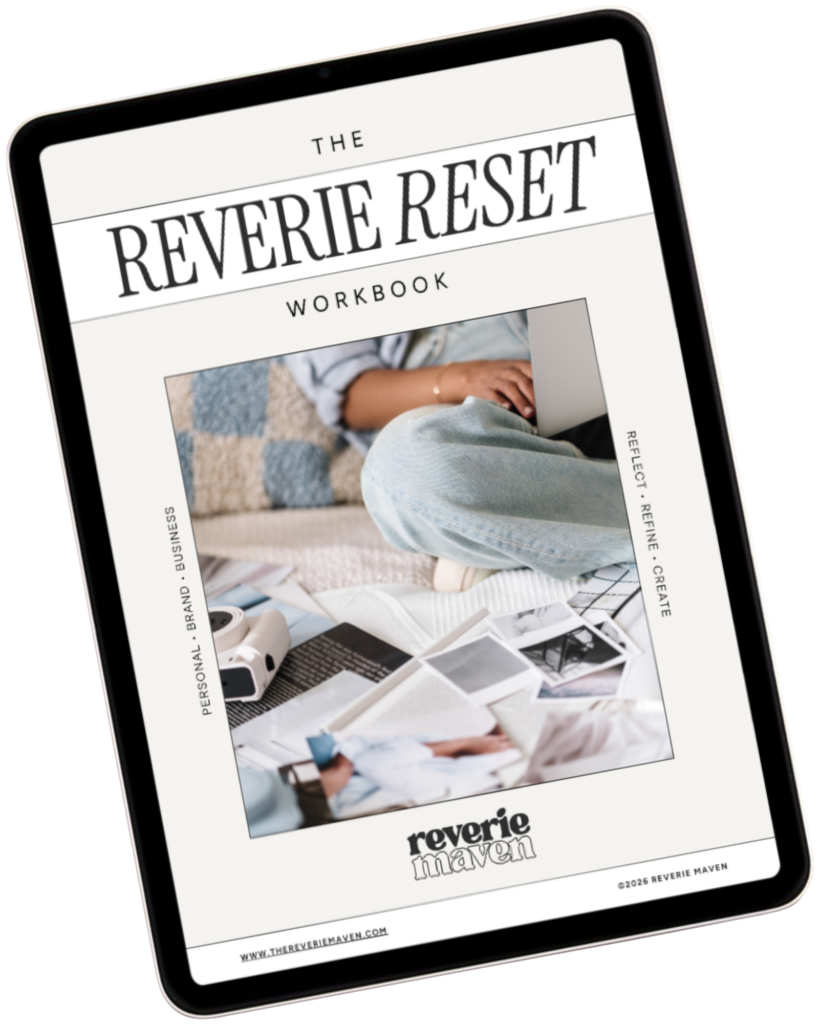
YOUR FREE STARTING POINT
Start with The Reverie Reset
A reflective workbook for reconnecting with yourself, getting clearer about what you genuinely want, and beginning to create a life and presence that feel more aligned, intentional, and fully your own.
Consider this your first step out of “someday” and toward what comes next.